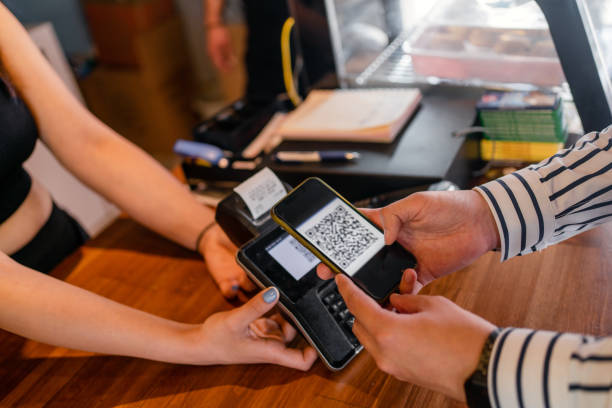
NFC Devices: Phones, Tablets, Wearables, Readers, and How “Tap” Really Works
NFC is one of those technologies that feels almost invisible when it works well. You tap your phone at a payment terminal. You tap a badge at a door. You tap a small sticker and a website opens instantly. In each case, the action is quick and intentional, and the technology stays in the background.
But when you try to choose the right NFC devices—or when you’re troubleshooting why a tap isn’t working—NFC suddenly stops feeling “invisible.” You start seeing different labels and questions: Are these NFC enabled devices or just “contactless-ready”? Is your phone an NFC enabled phone that can do more than payments? Does your NFC smartphone read and write tags? What’s the difference between NFC Android and iPhone NFC? Does iPhone even support it (yes, people still ask does iphone have nfc)? And once you know you have NFC, how do you turn it on—like enable NFC Android or enable NFC on iPhone?
This guide is written to be genuinely useful. It aims to explain what NFC devices are, how they differ, how to pick the right one for your use case, and how to get reliable results in the real world. It’s not a technical spec sheet, and it’s not an “SEO paragraph factory.” It’s practical, human, and designed to help people succeed.
What counts as an NFC device?
People often use “NFC device” to mean “a phone that can tap to pay.” That’s one valid meaning, but it’s only a slice of the ecosystem.
In the broad sense, NFC devices include:
A phone that reads an NFC tag
A phone that pays by tap (contactless payment)
A smartwatch that pays or holds a transit pass
A tablet that scans badges for check-in
A payment terminal that accepts contactless cards and wallets
A dedicated NFC reader connected to a computer
An access-control reader mounted on a wall
A handheld scanner used in retail, logistics, or events
A card or badge that carries NFC data (it’s “a device” in the sense that it participates in the communication)
So when you see “NFC enabled,” it helps to ask: enabled for what? Reading tags? Making payments? Checking into events? Each capability can require different hardware support, software support, and permissions.
NFC basics in plain language: why the “near field” matters
NFC stands for Near Field Communication. The “near field” part is the point: it’s meant to work at very short distance, usually within a few centimeters. This gives NFC two practical advantages:
First, it makes the interaction intentional. You don’t accidentally trigger NFC from across the room.
Second, it creates a “tap moment” where a user consciously initiates something. That’s valuable for security, trust, and user experience.
Most NFC interactions look like one of two patterns:
A powered reader (like a phone or terminal) energizes and reads a passive tag (like a sticker or card).
Two powered devices (like two phones) exchange a small amount of information.
NFC is not designed for big files or long transfers. It’s designed for small, fast handshakes that kick off something bigger—like opening a URL, pairing a Bluetooth device, confirming identity, or starting a payment.
The three NFC abilities: reading, writing, and emulation
When people say “my phone has NFC,” they might mean any of these:
Reading: the phone can scan a tag or card and interpret its data.
Writing: the phone can program a blank tag with new data.
Emulation: the phone can behave like a contactless card for certain systems (payments, passes, or secure credentials).
A modern NFC smartphone often supports reading and payments (emulation) very well. Writing is also common, especially on Android, but it varies by device and app support.
If you’re building an NFC project—marketing stickers, smart posters, product cards, business cards, or check-in tags—writing is important. If you’re just using NFC as a consumer—paying, tapping into transit, scanning a tag to open a page—reading is the key.
Why “NFC enabled devices” can mean different things
The phrase NFC enabled devices sounds like a clear label. In practice, it can refer to different layers:
Hardware support: the device contains an NFC chip and antenna.
Software support: the operating system supports NFC actions.
Feature support: the device supports specific NFC use cases (like payments or background tag reading).
User settings: NFC is turned on or allowed by policies.
A phone can have NFC hardware but be blocked by enterprise management rules. A tablet might support NFC reading but not payments. A device might support payments but not allow third-party apps to write tags. This is why “enabled” is not always a complete answer.
If you’re choosing a device for a specific purpose, match the device to the task, not just the label.
NFC devices you encounter most often
NFC smartphones and phones
Phones are the most common NFC reader people carry. An NFC enabled phone can be used for payments, reading tags, and sometimes writing tags or automations.
But not every phone model includes NFC, especially older budget models or region-specific variations. So it’s always worth confirming rather than assuming.
Tablets
Some tablets support NFC. They can be useful for check-in desks, event registration, or kiosk systems—especially when you want a bigger screen and longer battery life.
Wearables (smartwatches and bands)
Wearables often focus on payments and passes. They can be NFC devices in a practical sense because they can present a credential to a reader.
Payment terminals
Payment terminals are NFC readers designed for contactless cards and wallets. They usually support NFC at a “payment protocol” level, not necessarily as a general-purpose tag scanner.
Access control readers
These are the wall-mounted devices at doors and gates. They read NFC cards or NFC-enabled phones in a secure credential mode.
Dedicated NFC readers and writers
A dedicated reader/writer can connect to a computer or kiosk. These are valuable when you need consistent tag writing and testing across many tags.
NFC on Android: flexible, visible, and popular for NFC projects
People search for NFC Android because Android phones are widely used for NFC tasks beyond payments. Many Android devices make NFC settings easy to find, and many apps exist for reading and writing tags.
The phrase near field communication Android often appears when someone is trying to do one of these:
Confirm NFC support on an Android phone
Turn NFC on
Write a tag to open a URL or automate an action
Use NFC for payments through a wallet app
Fix a problem when tags are not scanning
Android’s strength is flexibility. Different manufacturers place settings in slightly different places, but the core idea stays the same: NFC is usually a feature you can enable, configure, and use with third-party apps.
NFC on iPhone: guided experience, strong security, fewer visible toggles
People search near field communication iPhone because iPhone NFC behaves a bit differently. Apple tends to integrate NFC into specific experiences (payments, passes, tag reading prompts) rather than presenting it as a “tinker-friendly” tool with lots of visible settings.
The phrase apple nfc shows up when users want to understand iPhone capabilities, especially for payments and tag reading.
And the question does iphone have nfc is still common because many users remember older eras when NFC was associated mainly with payments and felt “locked.” In practical everyday use, modern iPhones can read many NFC tags and support contactless payments, but capabilities depend on iOS version, model, and whether you’re using Apple’s built-in features or an app.
The best approach is not to argue about “more open” or “more closed,” but to test the exact experience you want. If your goal is “tap a sticker to open a website,” iPhone support is often strong. If your goal is “write tags in bulk,” you may prefer certain Android workflows or a dedicated writer.
How to check whether you own an NFC enabled phone
If you’re not sure your device is an NFC enabled phone, don’t guess. Check and test.
On Android
Open Settings and use the search bar. Type “NFC.” If you see an NFC toggle or “Contactless payments” settings, your device likely supports NFC. Some phones hide it under “Connections,” “Connected devices,” “More connections,” or “Network & Internet.”
If you find it, turn it on and test with a simple NFC tag that contains a website link. A test is powerful because it confirms the whole chain: hardware, software, and current settings.
On iPhone
You may not see a simple “NFC toggle.” Instead, test with a basic NFC tag that contains a URL. Keep the phone awake and unlocked, then tap the tag. If you receive a prompt to open the link, your iPhone supports NFC tag reading for that tag type.
For payments, open Wallet and check whether you can add a card and complete bank verification.
How to enable NFC on Android (without overcomplicating it)
Many people search enable NFC Android because they can’t find the setting. Here’s a calm approach that works on most devices:
Step 1: Open Settings.
Step 2: Search for “NFC.” If nothing appears, search for “contactless,” “tap,” or “wallet.”
Step 3: Turn NFC on (or enable “Contactless payments” if that’s the entry point).
Step 4: If your goal is payment, open your wallet app and set a default method.
Step 5: Test with an NFC tag or a known terminal to confirm the phone detects NFC activity.
If the setting exists but won’t turn on, enterprise device policies may be restricting it. In that case, the solution may require your organization’s IT policy changes.
How to enable NFC on iPhone (what it usually means)
People search enable NFC on iPhone expecting an on/off switch. Often, NFC reading behavior is integrated and doesn’t need a visible toggle. What you do depends on your goal:
If your goal is payments: set up Apple Wallet with a card and complete verification.
If your goal is reading tags: test a URL tag with your phone awake and unlocked.
If your goal is automations: use the Shortcuts app and look for NFC triggers, then test with a tag.
On iPhone, “enabling NFC” often means enabling the feature that uses NFC (Wallet, Shortcuts, a trusted app), rather than flipping a single global switch.
Where to tap: NFC antenna placement matters more than most people realize
If NFC “doesn’t work,” the device might be fine. The tap location might be wrong.
Different phones have antennas in different areas: often near the top back, near the camera, or near the center. Some cases or accessories can reduce performance.
When testing:
Keep the phone steady and close to the tag for a moment.
Move slowly across the tag area to find the sweet spot.
Try with and without a thick case if you suspect interference.
Test a second tag to rule out a faulty tag.
If you’re deploying NFC in public spaces, design for this reality. A larger tag or a clear “Tap here” zone reduces failure rates for average users.
NFC devices and reliability: what affects real-world performance?
NFC looks simple, but real environments add friction. Reliability depends on:
Tag quality and tag type
Device antenna design and sensitivity
Phone case thickness and material
Metal surfaces (which can interfere)
Tag placement and user behavior
Background scanning behavior in the OS
Interference from magnets or metal accessories
A reliable NFC experience is not only a tech decision; it’s a design decision. The same tag can work perfectly on a plastic sign and fail on a metal door unless you use the correct tag design for that surface.
NFC and payments: why “my phone has NFC” is not the full answer
Contactless payments require NFC, but also require a secure credential system. That’s why one phone can read tags but struggle with payments, or vice versa.
For payments, your device needs:
NFC hardware support
A compatible wallet system
Bank and region support
Security settings (screen lock, biometrics)
Correct wallet configuration
If tap-to-pay doesn’t work, it’s often not an NFC problem. It can be a wallet configuration problem, a bank restriction, or a region limitation.
NFC tags, cards, and chips: how NFC devices interact with them
Even though this page focuses on NFC devices, it’s important to understand what devices talk to.
A phone (or reader) is active. It generates a field and reads data.
A tag or card is usually passive. It responds using the energy from the field.
So terms like these describe the passive side:
NFC tags: the general term
NFC stickers: tags in sticker form
NFC cards: tags in card form
NFC chip: the electronic core that stores and transmits the data
When an NFC device reads a tag, it’s typically reading a small record like a URL, a text string, or an identifier that an app can interpret.
NFC devices in everyday life: practical, human uses
NFC becomes truly valuable when it saves steps. Here are realistic uses that people adopt quickly:
Opening a Wi‑Fi page or guest network instructions by tapping a tag
Launching a “how to” page near a machine, printer, or appliance
Sharing a business link by tapping a card
Starting a routine (music, focus mode, timers) by tapping a tag at home
Check-in at an event with a quick tap
Verifying a product registration or warranty page from packaging
Notice the pattern: NFC isn’t the “whole experience.” NFC is the shortcut to an experience that lives on the phone.
NFC devices for businesses: choosing the right type of hardware
If you run a business or are building a system, you may need more than phones.
When phones are enough
Phones can be enough when staff are scanning tags occasionally, when you have a small team, or when the system is informal.
When dedicated readers matter
Dedicated readers matter when you need consistent scanning, high throughput, or controlled environments. For example:
A check-in desk that scans hundreds of attendees
A warehouse that scans assets repeatedly
An office door that needs reliable access reading
A kiosk that should work without staff training
The lesson is simple: phones are flexible; dedicated readers are consistent.
NFC enabled devices in a mixed audience: designing for Android and iPhone together
If your audience is public, you should assume a mix of Android and iPhone.
For mixed audiences:
Keep the NFC action simple, like opening a URL.
Avoid complicated app-only flows unless you have a strong reason.
Make the landing page mobile-friendly and fast.
Use clear instructions near the tag so people understand what to do.
Because tap positioning varies, the physical design matters. A clear “Tap your phone here” marker reduces confusion and creates trust.
NFC Android workflows: writing tags, automations, and project building
One reason NFC Android is popular is the ecosystem of NFC apps. Many users write tags for personal shortcuts or business uses. While we won’t rely on any single app here, the general workflow stays the same:
You choose what the tag should do (often open a URL).
You write that data to a tag.
You test the tag with multiple phones.
You deploy it with clear physical placement and instructions.
Android can also support NFC-triggered automations through various tools. If you’re building a workflow, start with a simple action and expand only after it’s reliable.
If you are writing tags at scale, consider using a dedicated writer for consistency. Phones can write tags well, but bulk tasks benefit from specialized tools.
iPhone workflows: reading tags and using NFC with shortcuts
For many iPhone users, NFC is a “tap and it works” experience. That’s a strength for public deployments. If you’re deploying tags that open a website, iPhone behavior can be clean and consistent.
If you want an iPhone-driven automation, NFC can be used as a trigger in some setups through the Shortcuts app. The goal is the same as on Android: keep the action simple, predictable, and useful.
If you’re building for the public, don’t assume everyone has automations configured. Use NFC as a web link first, then offer optional advanced features.
Common NFC device issues and how to solve them
The tag doesn’t scan
Start with basics: confirm NFC is on (Android) or that tag reading works (iPhone). Remove thick cases. Try another tag. Try another phone. Move the phone slowly to find the best antenna location.
The tag scans but nothing useful happens
If it opens a link, the link might be broken or blocked. Make sure the destination loads quickly on mobile. If it requires an app, consider offering a web alternative.
The phone only scans sometimes
This often indicates weak coupling: the tag is small, placed on metal, or the phone’s antenna placement is sensitive. Improve the physical setup first.
Payments work but tags don’t (or the opposite)
This can happen because payments and tag scanning involve different software paths. Confirm the feature you care about is supported. For example, some devices emphasize payment support while limiting certain tag behaviors.
Security and trust: NFC should feel safe
NFC is short-range, which helps. But a tap that opens a link is still a link. People should remain cautious.
A trustworthy NFC experience:
Uses a recognizable domain name and clear branding
Avoids surprising prompts and aggressive popups
Does not request sensitive personal data immediately
Loads quickly and looks professional on mobile
Explains what the user is about to do (“Tap to open our menu”)
For users, a good habit is simple: look at the destination address before proceeding. If it looks strange, close it.
For builders, the standard is even simpler: don’t trick people. NFC should be transparent.
Choosing NFC devices: what to look for (without brand hype)
When selecting NFC devices—especially phones—for yourself or a team, focus on:
Reliability of NFC scanning
Ease of finding and toggling NFC settings
Wallet support (if payments matter)
Support for tag writing (if you need to program tags)
Battery life and daily usability
Your region’s feature availability and bank compatibility
The “best” device is the one that works for your use case in your environment. If you’re choosing for a business, test a few candidates before standardizing.
Special case: NFC devices for events and check-in systems
Events are a common NFC use case because NFC is fast and reduces queues.
Good event NFC design includes:
A clear check-in flow that works when Wi‑Fi is slow
Tags or badges that are durable and easy to scan
A scanning device that is comfortable for staff to hold
A plan for exceptions (lost badge, unregistered attendee)
Phones can work for small events. Dedicated scanners or tablets can be better for larger ones.
Special case: NFC devices for access control
Access control is often more complicated because it involves security credentials. In these systems, NFC devices are part of a managed environment. A phone might be able to act as a credential, but only if the system is configured for it.
If you’re implementing access control, work with the system owner. Don’t assume any phone can emulate any badge. Security systems exist to prevent exactly that kind of uncontrolled behavior.
The question people really mean: “Will NFC work for me?”
When someone searches nfc devices or nfc enabled devices, they often mean: “Will this work in my life?”
A good way to answer that is to define the tap moment:
What are you tapping? A payment terminal? A tag? A door reader?
What should happen after the tap? Pay? Open a page? Grant entry?
How many people will do it, and what phones do they use?
Where will the tag or reader live (metal, outdoors, busy environment)?
How will you support users if it fails?
NFC is simple when the tap moment is clear. Confusion arrives when the tap moment is unclear.
Quick answers to popular NFC device searches
What are NFC devices?
NFC devices include phones, tablets, wearables, readers, and terminals that can use Near Field Communication to read tags, exchange data, or present secure credentials. In everyday life, people most often mean phones and payment devices.
What does “NFC enabled devices” mean?
It usually means the device supports NFC hardware and certain NFC features. But “enabled” can refer to payments, tag reading, tag writing, or enterprise credentials. Always match the device’s capability to your intended use.
What is an NFC enabled phone?
An NFC enabled phone is a phone with NFC hardware and software support. Many can pay by tap and read NFC tags; many Android models can also write tags.
Does iPhone have NFC?
Yes, the question does iphone have nfc is common, and in practical modern use many iPhones do support NFC features such as payments and reading tags. Exact capabilities depend on iPhone model and iOS features.
How do I enable NFC on Android?
Search settings for NFC and turn it on. If you can’t find it, search for contactless payments or tap-and-pay. This is the common enable NFC Android flow.
How do I enable NFC on iPhone?
People search enable NFC on iPhone, but NFC behavior is often integrated into features like Wallet and tag reading prompts. Set up Wallet for payments and test tag reading with a URL tag.
Final thoughts: the best NFC device is the one that makes the tap effortless
NFC feels magical when it reduces friction. It saves steps, removes typing, and turns physical objects into direct entry points for digital experiences.
If you remember one idea, let it be this: NFC isn’t only hardware. NFC is the moment. When the tap moment is designed well—clear, trustworthy, fast—people love it. When it’s unclear or unreliable, people stop trying.
Whether you’re choosing an NFC smartphone, setting up NFC Android for a personal project, checking near field communication iPhone behavior for a public deployment, or selecting devices for a team, the goal is the same: create an experience that works for real humans, in real environments, with minimal effort and maximum clarity.